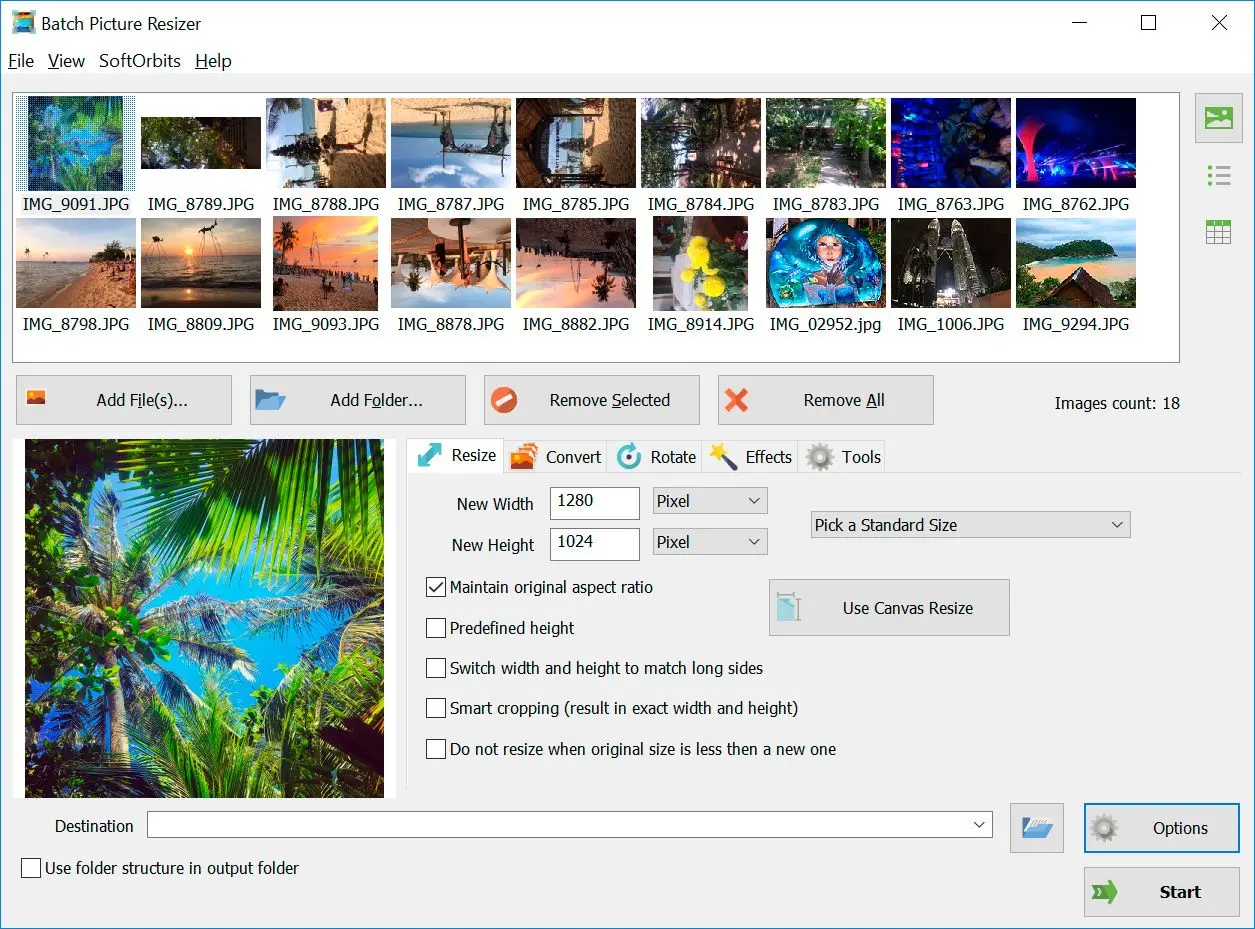
Shrinking an image is safe when you keep aspect ratio on and hold JPEG quality at 80 or above. Stretching a photo into the wrong proportions and crushing the file size can make it pixelated. Control compression separately from dimensions, and resize down rather than scaling a small image up.
Enlarging guesses at new pixels, so a tiny image blown up looks soft and mushy. Leave aspect ratio locked unless you genuinely want to crop, and resize from the original file rather than a copy you already compressed. A resizer that adjusts JPEG quality separately lets you keep a photo sharp while reducing its file size. The other trap is chasing a file-size target by slashing pixel dimensions, which one user on the Microsoft Tech Community described as ending up with "pixelated, nasty-looking images."
Can you resize images in Windows 11 Paint, Photos, or PowerToys?
TL;DR
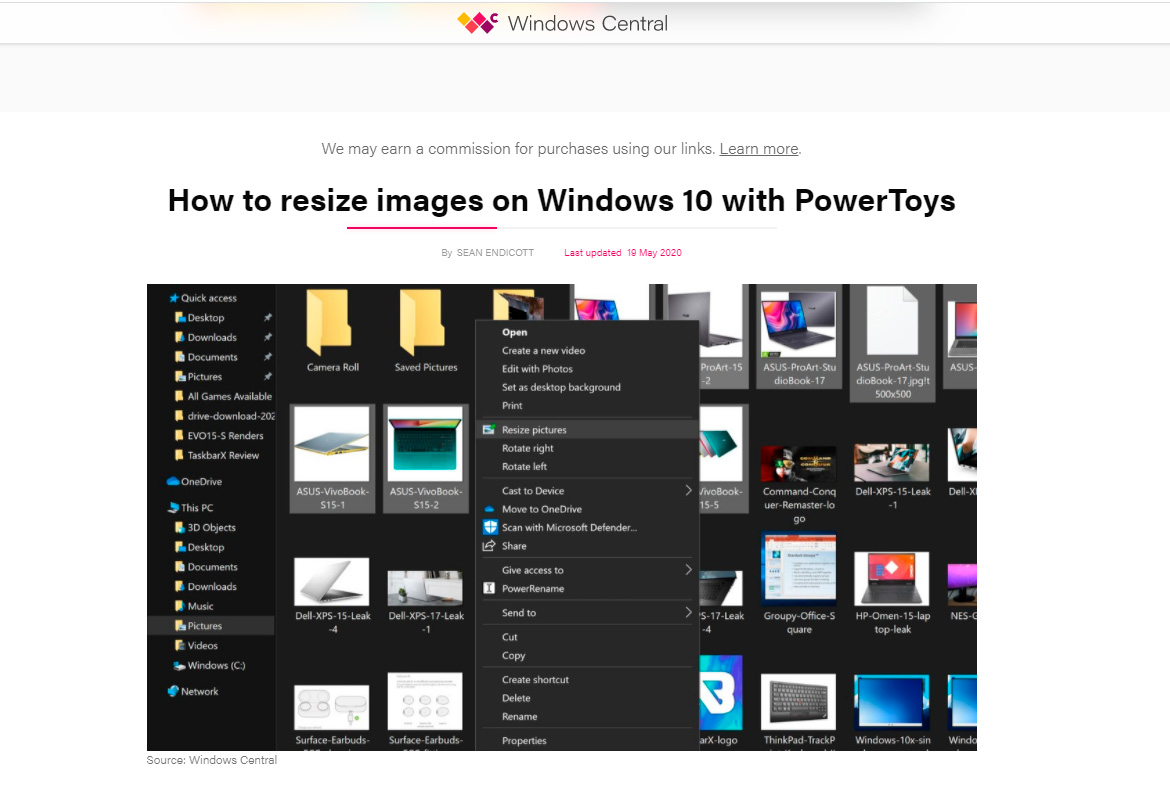
Yes, but each built-in option has limits. Paint and Photos resize one image at a time with no batch and no file-size target. Microsoft PowerToys adds a right-click batch resize, but it needs a separate install, has no KB/MB target, and users report the context-menu entry breaking after updates. Dedicated software covers all three gaps in one pass.
Tool
Batch a folder
Target file size (KB/MB)
Formats
Install needed
Paint / Photos
No
No
Common only
Built in
PowerToys Image Resizer
Yes (right-click)
No
Common, no RAW/HEIC
PowerToys install
Batch Picture Resizer
Yes (folder)
Yes
70+ incl RAW, HEIC, WebP
Standalone installer
For one image, such as resizing a photo for LinkedIn, an online tool can be quicker. PowerToys is a good free option if you can install it and only need pixel resizing. Microsoft documents its settings and a command-line reference on Microsoft Learn. Its limitations include the missing file-size target, and this PowerToys issue describes the right-click resize silently failing to open. HowToGeek's roundup of Windows 11 methods covers Photos, Paint, PowerToys, and a command-line route, none of which let you set a target file size.
Is it safe to use an online image resizer?
TL;DR
Online resizers require uploading your photos to someone else's server, which is a concern for private or work images that carry EXIF GPS data. A desktop resizer keeps every file on your PC. For anything personal, confidential, or work-related, resize offline.
Browser tools are fine for a stock graphic you do not care about. Family photos, ID scans, and product shots under NDA can contain EXIF metadata, including GPS coordinates. Once a file is uploaded, you cannot control who copies or keeps it, as this privacy FAQ on image resizers explains. A desktop image resizer download keeps the photo on the same machine, with nothing sent out.
What formats can photo resizer software read (HEIC, RAW, WebP)?
TL;DR
A capable Windows image resizer should handle more than JPG and PNG. Batch Picture Resizer reads 70+ formats, including iPhone HEIC, camera RAW (CR2, NEF, ARW), WebP, TIFF, GIF and BMP, and can convert while it resizes. Windows 11 does not open HEIC natively, so a tool that reads it directly saves a conversion step.
iPhones save photos as HEIC, which Windows 11 will not open without an extension. Cameras shoot RAW files that simple resizers may ignore. Batch Picture Resizer reads these directly, so you can resize and convert a folder of NEF (Nikon RAW) files into JPG in the same pass. You can also change WebP to PNG when you need transparency, or convert Sony ARW shots into JPG. Saving a transparent PNG or WebP as JPEG fills transparency with white, so keep PNG when you need a clear background.
How to resize photos for Instagram, Facebook, and social media
TL;DR
Each platform expects its own pixel dimensions. An Instagram square runs about 1080x1080, a Facebook link image is near 1200x630, and a YouTube thumbnail wants 1280x720. Set the target size once, keep aspect ratio on, and batch the whole set so every post matches without manual cropping.
Crop or pad to the right aspect ratio first, then resize the whole batch to the target dimensions. Presets let you save a common size and reuse it for the next batch.
Why Batch Picture Resizer fits batch resizing on Windows 11
TL;DR
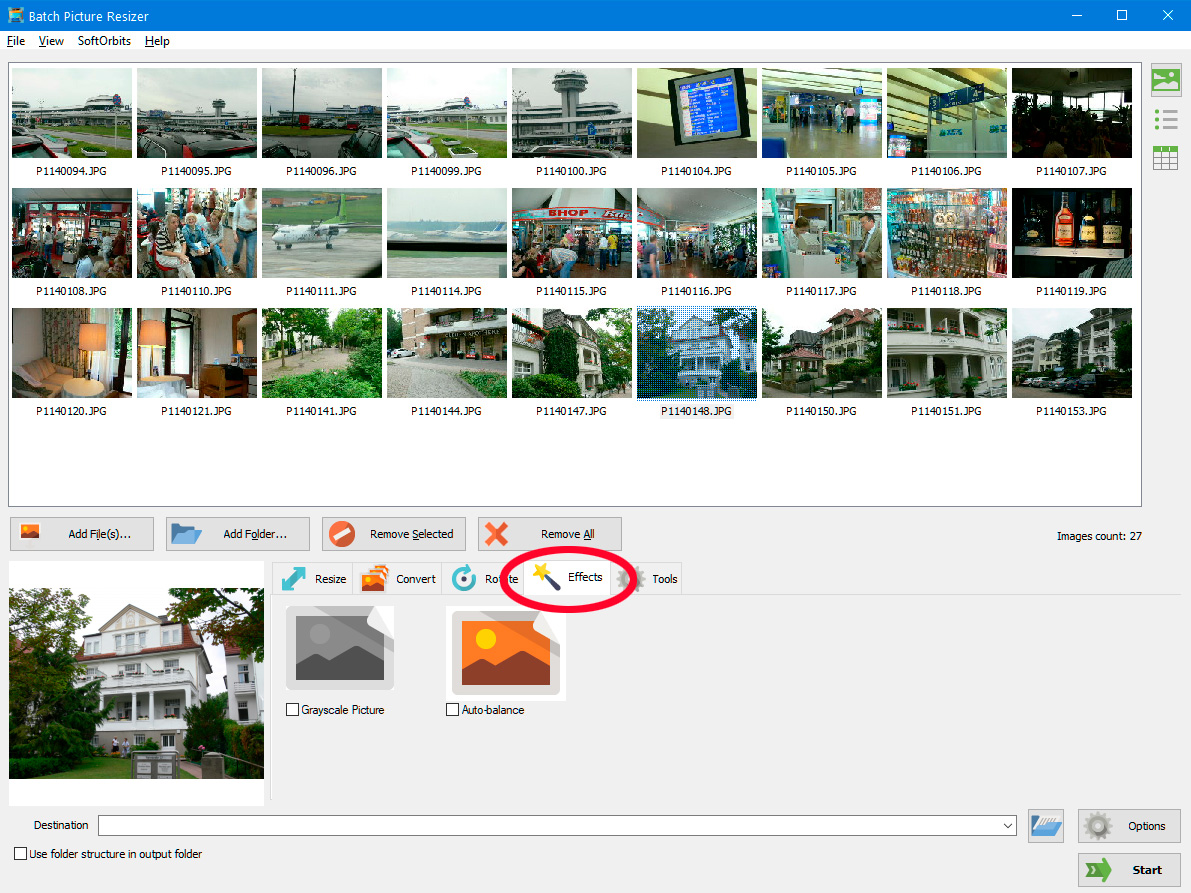
Batch Picture Resizer is a desktop tool built for resizing many photos at once on Windows 11, 10, and 7 (32/64-bit). It runs offline, handles 70+ formats, hits target file sizes in KB, and uses every CPU core so large folders finish quickly. It is a focused resizer and converter, not a full photo editor.
Pros:
Resizes a whole folder in one run, by pixel dimensions or a target size in KB
Reads 70+ formats including camera RAW, iPhone HEIC and WebP, and converts while resizing
Works offline with a small (~15 MB) installer and a free trial
Adds an Explorer right-click entry and a command-line mode for repeat jobs
Cons:
Not a layer-based editor for retouching or design work
The free trial watermarks or limits output until you buy a license
Batch Picture Resizer also converts files while resizing. A folder of Canon CR2 RAW files can become JPG in the same run. For a single image, Windows Photos is enough.
Pitfalls when resizing images on Windows 11
TL;DR
Avoid overwriting originals, using Paint for a batch, crushing quality to hit a size, relying on a PowerToys context menu that breaks, and uploading private photos to an online tool.
✔️ Resizing over your originals.
Saving resized copies on top of the source files leaves you no way back if you went too small. Send output to a separate folder and keep the originals untouched, as shown in the Microsoft Q&A board.
✔️ Using Paint for a whole batch.
Paint is a single-image editor, so opening 200 photos by hand is not realistic. For more than two or three files, use a dedicated batch tool. See the Quora questions about bulk resizing.
✔️ Crushing pixels to hit a file size.
Slashing dimensions to force a smaller file produces pixelated output. Adjust compression separately so quality holds while the weight drops.
✔️ Relying on a PowerToys context menu that vanishes.
On managed or updated PCs, the PowerToys resize entry can disappear or be blocked by IT policy, as users describe in the Microsoft answers thread. A standalone installer does not depend on a shell extension.
✔️ Uploading private photos to an online resizer.
Personal images carry EXIF GPS data and end up on a third-party server. Resize offline when the photos are sensitive.
Batch Picture Resizer
Download a batch image resizer for Windows 11, 10, and 7 (32/64-bit). Resize photos in bulk, hit a target file size in KB, and keep files offline.
NVIDIA® GeForce® série 8 e 8M, Intel® HD Graphics 2000, Quadro FX 4800, Quadro FX 5600, AMD Radeon™ R600, Mobility Radeon™ HD 4330, Mobility FirePro™ series, Radeon™ R5 M230 ou placa gráfica superior com drivers atualizados
Download Batch Picture Resizer from the official SoftOrbits page. It installs on Windows 11, 10, and 7 (32/64-bit), runs offline, and offers a free trial before you buy a license.
Leave the keep-aspect-ratio option on and set only width or only height. The tool calculates the other side. Turn it off only when you deliberately want to crop or pad to a fixed box.
Yes. The resizer reads HEIC directly, so you can resize and convert iPhone photos to JPG without installing a separate HEIC extension that Windows 11 otherwise needs.
 Batch Picture Resizer