

Download NEF to JPG Converter Software for Windows 10 PC

  1. 1️⃣ Download and install Batch Picture Resizer.
  2. 2️⃣ Add your NEF files or a whole folder.
  3. 3️⃣ Pick JPG and click Start.
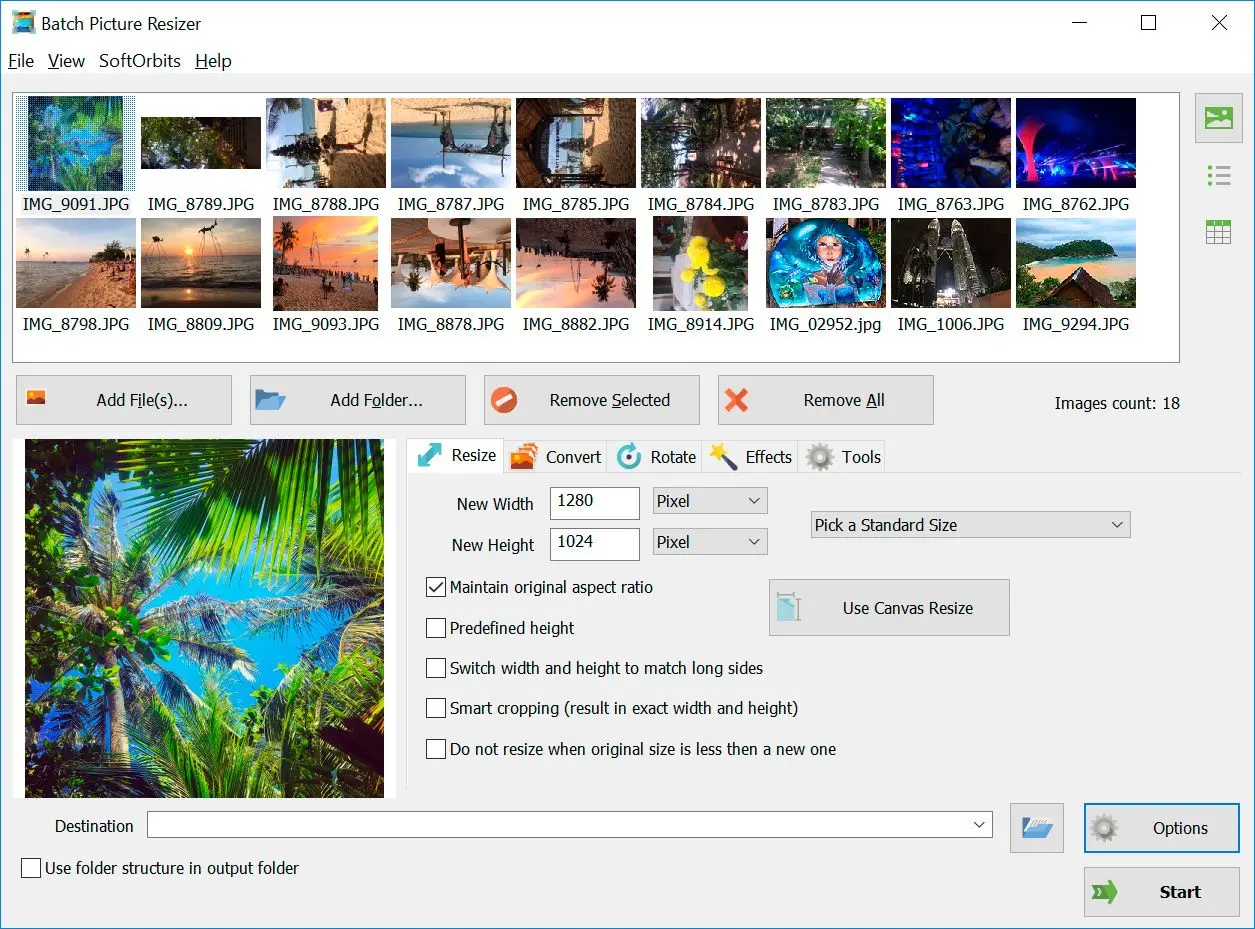
Batch Picture Resizer Captura de tela.

A NEF file is a Nikon RAW photo. Windows often shows blank thumbnails, refuses to open it in basic apps, and rejects it in upload forms and editors. SoftOrbits Batch Picture Resizer opens Nikon RAW files, exports JPEGs, and resizes batches on your PC. It also works as a right click image converter, so you can convert images from the Explorer menu.

O que irá aprender
Aplicar em 5 min Salvamentos 2 hBeginner

How to download and use NEF to JPG Converter Software on Windows

Download and install the NEF to JPG Converter Software

Grab the free trial for Windows and run the installer. No account or sign-in is required.

Windows 11 / 10Teste gratuito, sem necessidade de cadastro

Add your NEF files to the program

Open Batch Picture Resizer and drag your shots in, or click Add File(s) or Add Folder. The same window can convert other RAW files to JPG.

Add NEF files to Batch Picture Resizer..

Set the output format to JPG

On the Convert tab, pick JPG. Set JPEG quality and DPI here if you need control over file size.

Select JPG as the output format..

Choose a destination and click Start

Pick the folder for the JPEGs, then click Start. The batch runs across your CPU cores and writes every file at once.

Choose conversion and resize options..

Batch Picture Resizer Batch Picture Resizer

Tutoriais em Vídeo

What is a NEF file, and why won't it open in Windows?

TL;DR

NEF is Nikon's own RAW format, and Windows has no built-in reader for it, so Explorer shows blank icons and Photos often refuses to open the file. Converting to JPG once fixes it everywhere, with nothing extra to install.

In File Explorer, .NEF shots often appear as grey or blank icons. The Photos app may refuse to open them.
You can install a Nikon codec or Microsoft's Raw Image Extension from the Store, but newer cameras can still produce files that apps and sites reject. A NEF contains the unprocessed sensor data from the camera. A JPG is a finished, compressed photo that opens in browsers and phone galleries.

NEF vs JPG: what you keep and what you lose

TL;DR

A NEF keeps 12-bit or 14-bit RAW data with room to recover shadows and skies. A JPG is 8-bit and bakes in the edit, which is perfect for sharing and printing but harder to push later. Keep the NEF, share the JPG.

A NEF keeps white balance, sharpening, and exposure adjustable. A JPG is smaller, opens anywhere, and has a final edit.

AspectNEF (RAW)JPG
Bit depth12-14 bit (4,096-16,384 levels)8-bit (256 levels)
Editing headroomRecover shadows and blown skiesLimited; banding if pushed hard
White balanceStill adjustable after the shotBaked in at export
File sizeLargeSmall, opens anywhere

A NEF original next to its converted JPG..

A high-quality JPG from a NEF works well for viewing, printing, and sharing. If you edit it heavily later, the 8-bit file can band in the shadows (why RAW carries more data). Keep the original NEF for shots you may re-edit and export JPGs for sending, posting, or printing. For a macro series shot for stacking, keep the NEFs because macro focus stacking software reads RAW directly.

Get a clean JPG from your NEF files

TL;DR

Three settings of NEF to JPG Converter Software do most of the work. Keep JPEG quality at 90 or higher, export in sRGB for anything online, and resize sensibly for the web. Set them once and the loss is invisible at normal viewing sizes.

Set quality, color space, and size

Keep JPEG quality at 90 or higher. Export in sRGB for anything headed online, since browsers and phones expect it. Resize for web use so a 45-megapixel Nikon frame does not become a 20 MB file. Batch Picture Resizer applies all three in one run and also converts TIFF scans and WebP images.

Why your JPG can look darker or off-color

The preview in a NEF can look punchy while the exported JPG looks duller. Nikon embeds a small JPEG with picture-style settings, while a true RAW decode starts neutral. A converter that reads the sensor data gives you the decoded image instead of lifting that preview. The difference is discussed in the Adobe community forums.

Does your EXIF data survive?

EXIF includes the camera model and lens, date and exposure, and often the GPS location. JPG can carry this data, and a good converter passes it through. Some NEF to JPG Converter freeware drops metadata in batch mode, even with a "keep EXIF" box ticked, as photographers have reported in the ImageMagick discussions. If metadata matters, convert five files first and check that the dates survived.

How to batch convert a whole folder or memory card of NEF files

TL;DR

Point the NEF to JPG Converter Software at a folder or the memory card and it queues every .NEF inside, subfolders included, then writes the JPGs where you choose. A few hundred files convert in one pass instead of one at a time.

Point Batch Picture Resizer at a folder or memory card. It adds every .NEF in the folder and its subfolders, then writes the JPGs to your chosen destination. It uses every CPU core at once.

NEF to JPG converter Software: desktop vs online

TL;DR

Online tools upload your files to a server you do not control and often cap the count at five or ten per session. A desktop converter keeps every NEF on your own machine and runs whole folders at native speed, tied to your CPU rather than your upload.

Browser-based converters work for one or two files, but full memory cards and slow connections make uploads less useful. A desktop converter keeps the files on your own machine and also handles CR2 files from Canon.

Batch Picture Resizer Batch Picture Resizer

Are your newer Nikon Z-series NEF files supported?

TL;DR

Newer Nikon Z bodies like the Z8, Z6III, and Z50II write updated NEF variants that many older codecs and editors cannot read yet. A NEF to JPG Converter Software that ships its own RAW library opens them without waiting for a codec update.

NEF runs across Nikon's lineup, from older DSLRs like the D7500 and D850 to Z-series mirrorless bodies. Newer Z cameras use updated, high-efficiency NEF variants, and owners on the DPReview forums report that much existing software cannot open them at launch. A converter with its own RAW decoding library reads those files directly, so a Z8 or Z6III NEF converts like an older D850 file.

How to convert NEF to JPG on Windows without extra Nikon software

TL;DR

You do not need Nikon NX Studio, Photoshop, or a codec pack. A standalone desktop converter reads your .NEF files directly and writes JPGs, so you can process a whole folder without opening a heavy editor first.

Nikon's own editor is free and accurate, but it is built around editing one image at a time. A dedicated converter handles a folder of hundreds without the photo-editor learning curve.

Why Batch Picture Resizer fits Nikon RAW conversion software

TL;DR

Batch Picture Resizer is a desktop converter built for whole folders, not a full photo editor. You control JPEG quality and resolution, resize on request, and keep EXIF. There is also an Explorer right-click shortcut and a command line for scripted jobs.

A right-click entry in Windows Explorer sends selected files straight to JPG. The command line can script the job or connect it to a scheduled task, so a watched folder of new shots converts on its own.

Pros:

Converts whole folders and memory cards of NEF files in a single run

Controls JPEG quality and DPI, with optional resize and a target file size in KB

Keeps EXIF, with Explorer right-click and command-line shortcuts

Runs on Windows 7, 10, and 11 in 32-bit or 64-bit

Cons:

Not a full RAW editor for tone curves and local adjustments

Windows only, no macOS build

When you need a local batch route from Nikon RAW to JPG, grab SoftOrbits Batch Picture Resizer and point it at your shots.

Batch Picture Resizer Batch Picture Resizer
Convert Nikon NEF RAW files to JPG on Windows 10 or 11 with Batch Picture Resizer. Offline batch conversion, EXIF, resize, and JPEG export. Free download.
Batch Picture Resizer
Preço
de R$ 109 / mês
Versão
14.6
Tamanho do Arquivo
10,6 Mb
Última atualização em
19/08/26
System Requirements


🙋Perguntas Frequentes

Yes. It is a free download, and during the trial you can convert your own NEF files and see the results before you buy. A license removes the trial limits for ongoing use.

Many Nikon bodies have a RAW processing menu that saves a JPG copy in-camera, one file at a time. For a folder of shots, copy the NEF files to your PC and batch convert them.

It does. The software runs on Windows 10 and 11, plus older versions down to Windows 7, in 32-bit or 64-bit.

The conversion defaults to sRGB, which browsers and phones expect. For an AdobeRGB print workflow, set the converter's color-profile option before running the batch.

Adobe DNG files convert the same way as NEF. DNG to JPG works in the same batch, so you can mix DNG and NEF in one folder.

Avaliar Conversor NEF para JPG

  • Windows 7
  • Windows 8
  • Windows 10
  • Windows 11
Autor: SoftOrbits (English)
4,5
Média de avaliação: 4,5 de 863 votos
Bom

Risk-free download

progressive-webapps/apis/offline-first Created with Sketch.
100% offline
Your files never leave your PC
Safe & secure download
Directly from the official website
No sign-up required
No account or email to get started
Trusted since 2006
Desktop software for Windows